
Speaker Cleaner Eject Water & Remove Dust
Dropping your phone in water or suddenly getting low, muffled sound is really frustrating. When water gets trapped inside the speaker holes or dust builds up over time, your music, videos, and phone calls sound terrible. Most people panic and try using sharp pins, rice, or cotton buds, but these can easily poke a hole in your speaker and damage your phone forever.
You don’t need to visit a repair shop or risk breaking your phone. Our free online Speaker cleaner tool plays special sound waves that vibrate your speaker and safely push all the trapped water and dirt out. Just turn your phone’s volume all the way up, hold the speaker facing down, and tap play to get your clear sound back in a few seconds.
What is Fix My Speaker?
Fix MySpeaker is a web app that cleans a speaker by removing dust particles and ejecting water using sound wave technology. It helps mobile devices and workstations improve productivity. It not only works when the speaker is damaged but can also be used often, as it boosts the volume and enhances speaker health. Tired of opening your browser every time? Download our free Speaker Cleaner app once and fix your phone’s sound instantly whenever you need it.
We tested dozens of sound tones across our social media channels, including TikTok, where our videos earned over 1M+ views and thousands of positive reviews from real users. Out of all those tests, we selected the top two most effective sounds that actually push out trapped water and dust. If your speaker still sounds a bit muffled after the first run, simply play the tone 2 to 3 times to get fully clear sound.
How does it work?
Our speaker cleaner uses specially tuned sound frequencies to vibrate your phone’s speaker. These strong, safe sound waves shake loose trapped dirt and push out any water stuck inside. By combining deep low tones and sharp high tones, the tool clears out blockages and naturally boosts your speaker’s volume back to full strength.
Click the related button, the frequencies will start cleaning the speaker, and wait until the progress bar reaches 100%. Click on the same button again. After the process is complete, check for sounds; clear, and boost sounds will be the results.
High-Frequencies
High-frequency sounds (above 2000Hz) produce sharp, clear tones that help break down dry dust build-up around the speaker grill. Tap the dust cleaning button to play the tone for 30 to 60 seconds. Combined with deep vibrations, this safely shakes out stubborn dirt particles and restores crisp, clear audio. If the sound is still low, repeat the cycle once or twice.
Low-Frequencies
Low-frequency sound waves (between 165Hz and 250Hz) create deep, powerful vibrations and strong air movement. When you tap the Water Remover button, this heavy bass tone causes the speaker membrane to rapidly pump back and forth, safely pushing trapped water droplets out of the speaker mesh. For the best results, hold your phone with the speaker facing downward and repeat the process 2 to 3 times.
Medium Frequency
Mid-range frequencies (between 250Hz and 2000Hz) cover the natural range of human voice and core audio elements. Once water and heavy dust are pushed out, these balanced sound waves help recalibrate your speaker’s tone. Playing mid-frequency sounds ensures your phone’s speaker produces clear, natural voices on calls and videos without any harshness or distortion.
Pressure Balance
When the sound wave plays at high volume, it builds rapid air pressure inside the speaker chamber. This acoustic force acts directly against trapped moisture and dirt, pushing them outwards through the tiny speaker holes without harming any delicate internal components.
Movement
As the sound frequency plays, the speaker cone rapidly vibrates back and forth. This fast pumping motion pushes trapped moisture and dust out through the grill, allowing fresh air to circulate and drying out any remaining dampness inside.
Regulation
Once the trapped water and dust particles are fully pushed out, the speaker membrane moves freely again. This restores balanced airflow and proper sound calibration, returning your phone’s volume to its original loudness and crystal-clear quality.
Features
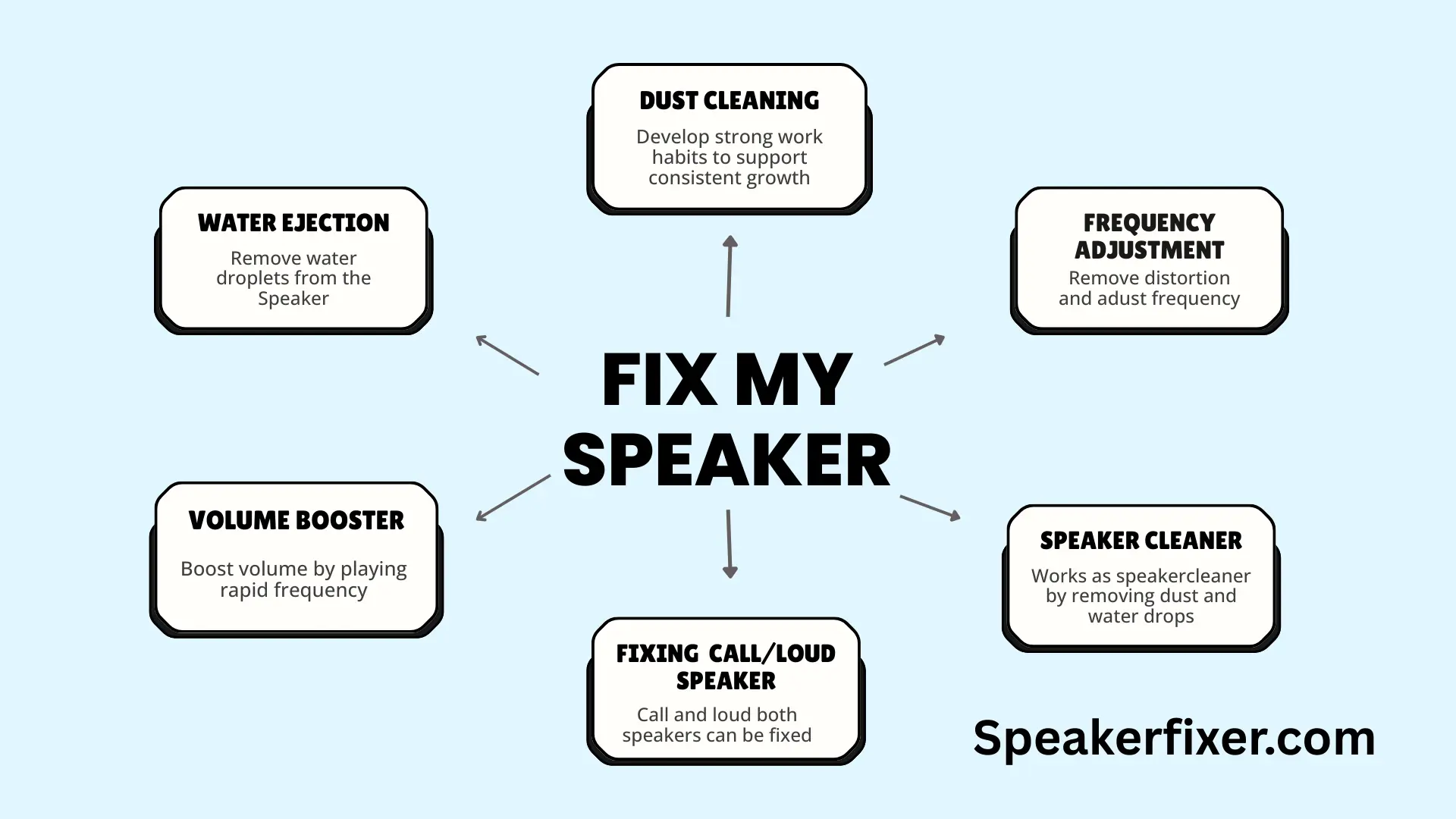
The key features of the Fix My Speaker sound include sound-wave cleaning using special frequencies to eject water, remove dust, and debris.
Eject Water
The main feature of the app is ejecting water that splashes on the phone and enters the speaker. As you know, we can wipe water drops off the speaker with a tissue or a handkerchief, but it uses various frequencies to remove water drops.
Dust remover
Due to environmental factors, mobile devices encounter significant dust problems. Sometimes dust gets into the speaker or the grill. Dust in the sound speaker can cause low volume problems during videos, audio, and calls, making it difficult to listen clearly.
Volume Booster
The Volume Booster plays rapid vibration frequencies (usually mid to high frequency), which cause the diaphragm to shake at a controlled intensity.
This helps restore full vibration, improve airflow within the speaker cavity, and increase overall loudness.
Call and Loud Speaker
One of the best features of our speaker cleaner is to clean both call and loud speaker modes. You can easily clean the call speaker by tapping the call speaker button. It sound test the call speaker and fix speaker. You can easily listen and convey the message during a call without a muffled or distorted sound.
Moreover, you can also clean a loudspeaker by tapping the loudspeaker button. It sound test of the loudspeaker and uses low frequency to clean.
Speaker Cleaner
Fix My Speaker is an easy tool that helps clean your phone’s speaker by removing water and dust using sound waves. it plays special sounds that push out water, shake off dust, and refresh the speaker’s airflow. This quickly makes your speaker louder, clearer, and free from muffled or distorted sound.
What Makes Us Different?
| Feature | SpeakerFixer.com | Other Tools |
|---|---|---|
| App Required | Works directly in browser | Usually require app |
| Free to Use | 100% free with full access | Often limited or behind paywalls |
| Ad-Free Experience | No annoying ads | Cluttered with ads |
| Precision Sound | Engineered to clear debris safely | Use generic or untested sounds |
| Instant Access | One-tap use, no setup needed | Require permissions |
| Cross-Device Compatible | Android, iOS & PC | Alatform-specific |
| User-Friendly | Simple, clean, and intuitive | Often bloated |
| Data Collection | No personal info stored | Request unnecessary access |
User Guide (Step-by-step Instructions)
Follow these clear, safe steps to get the best results when you use our Fix My Speakers web app for water removal, clear dust, or boost volume. Open the tool, increase the volume to 80-100%, and tap the start cleaning button. The web app will play different frequencies. Wait until the progress bar is 100%. Repeat the step, then check for sound to see if it has removed muffled sounds.
Quick safety check (30–60 seconds)
- Turn the screen on and check for visible damage (cracks, holes, detached grills).
- If the phone was deeply submerged (especially salt water or coffee), skip the app and seek professional help — do not run loud tones yet.
- Remove any case, magnetic mounts, or covers that block the speaker.
- Turn off Bluetooth and disconnect any wired headsets.
- Put the phone on a flat, stable surface (speaker grille facing up or at a slight angle).
Choose the right mode
Our speaker cleaner web apps have multiple modes. Pick the one matching your problem:
- Water Eject / Moisture — for recent splashes, steam, or humidity.
- Dust / Debris Clean — for muffled or quiet sound.
- Volume Boost / Diaphragm Reset — when max volume is low but the speaker otherwise works.
- Quick Clean — 10–20s for light issues.
- Deep Clean — 30–60s or more for heavier blockages.
Pre-run preparations
- Lower the phone volume to ~30–40% before starting (some tones can be loud).
- Close other apps that play sound.
- Keep the phone steady and do not cover the speaker during the run.
- If possible, place the phone on a paper towel to catch ejected water droplets.
Run the cleaning cycle
- Press Start / Play for the chosen mode.
- Let the cycle complete — do not interrupt midway.
- If the app shows progress or instructions, follow them (some recommend angling the phone slightly downwards).
Check results (immediately after)
- Play a short test sound (music, voice memo, or a test tone).
- Listen for clarity, volume, and whether crackling or cutouts persist.
- If the problem is partially improved, run one more cycle (up to 2–3 times total). Many users need multiple cycles for stubborn dust/water.
Aftercare & prevention
- Keep speakers covered or use dust-resistant cases if you’re often in dusty environments.
- Wipe grills regularly with a dry microfiber cloth.
- Avoid taking the phone into high-humidity zones (steam rooms, near hot showers).
- Run a short maintenance clean every few months if you notice dust buildup.
What Fix MySpeaker can’t do?
Mainly, it can clean dust and work as a water remover. But here are some problems it can’t resolve. A hardware technician can fix the issues.
Physical speaker damage
Our speaker test can’t help with physical damage, as it is designed for dust and water problems. For physical damage, consult with the hardware technician, who will repair the speaker by using their techniques.
Overheating chipset
Sometimes, when you use multiple audio apps, minimize the main app, and use other apps, it can cause a halt in the chipset and potentially damage the speaker. You can prevent this overheating by not only minimizing the app, but also by using a single audio app at a time or by doing an audio test.
Common Speaker Problems
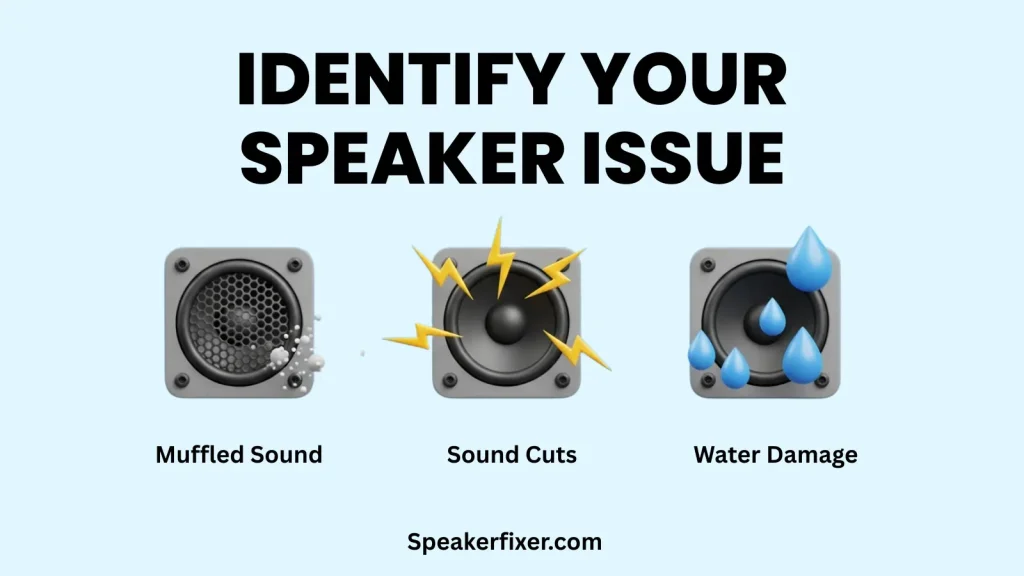
Smartphone speakers face several issues, and each has a specific cause. If you are wondering why speaker not working properly, here are the main reasons.
Muffled Sound
Dust, lint, or partial water blockages reduce airflow, making sound unclear. This feels so uncomfortable during calls or while watching videos. My fix Speaker vibrates the diaphragm to eject trapped particles and restore clarity.
Buzzing Sound
Crackling, buzzing, and rattling noises usually indicate dust trapped inside the speaker, a loose speaker diaphragm, or moisture stuck inside the sound chamber
Low Volume
Debris restricts airflow, or the diaphragm is stiff. The volume booster mode enhances vibration sound and naturally improves loudness.
Sound Cuts
Intermittent sound occurs when dust or lint partially blocks the speaker holes, the speaker module is not receiving stable power, or water droplets disrupt the diaphragm movement. It feels like the audio “disappears” for a moment, then comes back. This problem is especially noticeable during calls.
Water Damage
Water fills the speaker’s grill holes or the internal chamber. Low-frequency pulsating waves push water droplets outward through vibration pressure.
Distorted Audio
When the bass drops, dust blocks the low-frequency airflow, water prevents diaphragm flexibility, and the speaker chamber loses its resonance. Users usually notice this while listening to music or playing games.
Technical Ways if the phone fell in water
Falling a phone in water is one of the most common issues yet unresolved by many. Here are some technical ways to resolve this issue.
Shut down immediately
Sometimes, your phone falls into the water. Instead of panicking, turn off your phone immediately. This will help your phone from getting a dead screen or prevent speaker damage.
Drying time
After turning your phone off, let it dry completely for at least 8 hours or a day. This will help protect your phone from damage, as a single drop inside it can cause numerous problems, including speaker and charging issues.
Use our Water Ejecter
When you turn it on and open speakerfixer.com webapp, it contains a water eject shortcut button. Tap the button for about 3 minutes, and a low-frequency sound will be produced. When it’s done, repeat the process 3-4 times. It will eject the remaining water drops.
Professional Assistance
If the above method doesn’t work and you can’t turn on your phone, take professional assistance. He will use the techniques to turn your phone on
Preventive Measures to Avoid Water Damage
Use Waterproof cases, avoid using near water, and be cautious in humid environments. Keep your phone away from sinks, pools, and rain, and consider using ziplock bags for extra protection.
Exposure to water
Keep your smartphone away from liquids. Don’t use it in places where it might get wet, like near swimming pools, beaches, sinks, or when it’s raining.
Use Protective Cases
Get a strong, water-resistant phone case. These cases provide extra protection against spills and moisture.
Weather Cautions
Rain, humidity, and dust storms can harm your devices. If rain is expected, protect your gadgets and accessories with waterproof covers.
How to clean an iPhone’s speaker
To clean your iPhone speaker, turn off Bluetooth, turn up the volume to 100, and remove your mobile cover if necessary.
Built-In iPhone Speaker Cleaning Methods
Use the iPhone Water Ejection Shortcut (iOS Shortcut Method). Although not pre-installed by Apple. It uses Apple’s system tones to vibrate the speaker. These vibrations push out trapped water, moisture, or dirt particles. It works similarly to the Apple Watch “Water Eject” feature.
Water Eject Siri Shortcut
While Siri is a powerful assistant for managing daily tasks on your iPhone, it doesn’t have a built-in feature to eject water or dust from your speakers. To fix this manually, you can use a simple shortcut: Just tell Siri, ‘Open speakerfixer.com.‘ Once the site is open, you can play specialized high-frequency sounds—like Water Ejection, Dust Removal, or Sound Booster—to clear your speakers and restore crystal-clear audio instantly.
Use Accessibility Mode to Boost Clarity (iOS Built-In)
iPhones include hidden audio enhancements under Accessibility settings. Like Phone Noise Cancellation, Mono Audio, and Custom Audio Setup (Headphone Accommodations). These adjust the sound profile and help the speaker output become clearer when the audio engine is misconfigured.
Speaker cleaning common methods
Apart from using our fixd or professional methods, some common methods that can help you clear speaker are or you can explore all speaker cleaning methods including DIY techniques.
Silica Gel
Silica gel is the most common cleaning agent for sound speakers and keyboards. But it can’t handle audio distortion and frequency management. It only removes dust from the outer surface.
Rice Method
When your phone interacts with water while drinking, wipe it out and keep it in the Rice container for 3-4 hours, as rice will suck up the water. However, it isn’t helpful for water damage, such as a phone that fell in the bathtub.
Toothpick Cleaning
A toothpick is not only used to clear food particles from your teeth, but also helps remove lint from your device’s speaker. This is quite easy, but it is also cautious as a slight misstep can damage the speaker parts.
Air Blower
Some sites recommend compressed air, then the Air Blower. Compressed air easily damage the speaker, whereas an air blower using silicon one is a safer method.
Turn on the air blower and keep it far from the speaker. Use a few short bursts to fix my call speaker dust particles. If it doesn’t work, bring your air blower closer to your speaker for better effects.
Soft Brush
Most websites, including Tom’s Guide, recommend the soft brush cleaning method. Soft Brush can also be used to clean dust or lint, but it can’t remove water or water sound from speakers. To use this method, you have to take a clean, soft makeup brush or another soft-bristled brush, and use it to clean from the lower speaker near the jack.
This method is not much safer, as its misuse can permanently damage the speaker.
Sticky Tape
Sticky tape or artist tape is another popular method for removing dust from the call speaker. Remove the mobile cover and screen protector for a better experience. Wrap the tape around your finger, keeping the sticky side up. Now, place your finger on the receiving speaker and roll around. This tape is not as hard as other solution tapes, but it is quite useful.
How to Maintain Speaker Health?
The most important part of a device is maintaining its health. Sometimes we face a lot of battery problems due to inappropriate use, such as charging the phone while it’s on or using it on a low charge. It disturbs battery health.
When it comes to speakers, they also need proper care, such as the My Speaker Cleaner sound app. Here are common ways to maintain speaker health.
Keep the Speaker Grill Clean
Dust and lint accumulate naturally on the speaker mesh. Clean it fix it regularly using a soft brush, a microfiber cloth, and a gentle air blower. Avoid using needles, pins, or metal objects—they can damage the speaker diaphragm.
Software Update
Regular software updates to your device improve speaker health and battery issues. It is also helpful in clearing bugs.
Go to Settings, select Software Update, and then choose where to download or install software automatically when connected to wifi, according to your choice.
Avoid Blocking the Speaker
Covering the speaker with your hand, pillow, or cloth while playing audio distorts the sound and forces the speaker to work harder. Keep the area around the speaker free from blockage.
Use our Fix my Speaker App
To improve the dust cleaning of your iPhone speaker, use our beep sound. Tap the dust-clean button, and a sharp sound wave will be ejected from the speaker. Repeat the process to check muffled sounds.
To water remove sound, tap the Eject Water button. A deep sound will be produced, and water will be ejected from the speaker.
User experiences
Final Thoughts
Our speaker cleaner is an incredibly effective and modern solution for fixing common smartphone audio issues. Whether your phone is muffled due to dust, crackling because of moisture, or too quiet due to diaphragm stiffness, sound-wave technology provides a safe and instant fix—without visiting a repair shop.
By using water-eject modes, dust-clearing frequencies, and volume-boost features, you can restore your speaker’s original clarity and loudness in just a few seconds. Combined with regular maintenance and proper phone care, your smartphone’s audio will stay crisp, clear, and powerful for years. For more tips and troubleshooting guides, visit our blog.
Frequently Asked Questions (FAQs)
How to remove speaker dust?
To remove dust from your phone speaker, use our Fix My Speakers high-frequency button. But some common methods like silica gel, air blower, sticky tape, etc can be used, but they are not reliable.
How to eject water from a phone if it falls in the water?
If the phone falls in water, wipe it with a soft cloth, turn it off for 8-10 hours, do not charge for a day, and then use the clean my Speaker’s low-frequency button for water removal sound.
Does it fix completely damaged speakers?
No. If the speaker is physically damaged, corroded, or has internal hardware failure, a sound-based cleaner may not be enough. In such cases, professional repair may be required.
Can it remove water from the charging port or microphone too?
speaker cleaner is designed specifically for speakers. While it may have a slight effect on other audio components, it’s not a substitute for tools meant to clean charging ports or microphones.